Rosa's World

Showing posts with label Computer Maintenance. Show all posts

Thursday, June 19, 2014

Backups are IMPORTANT!!!

Hi There!

I just read a post, this morning, where someone lost their cell phone and they're now desperate. Cell phone was stolen and they're now begging for their memory card from their phone, to be returned, 'cause they've lost precious pictures of their newborn child.

PLEASE PEOPLE - SAVE YOUR CELL PHONE PICTURES ONTO YOUR COMPUTER!!! Put them on SkyDrive, The Cloud, DropBox, on your computer.... ANYWHERE!!!
Before its too late.

My 25 cents worth of advice, this morning.

Have a great day!

Rosa

Sunday, May 2, 2010

Computer Maintenance - #5 (LapTops)

Hi There!

Recently, I've had a few requests as to how to clean a laptop computer. Well, we ALL know that you don't eat or drink over your keyboard and especially NOT over a laptop, right? But, we're all human and then, factor in teenagers, spouses and friends .... and don't get me started on the "dust factor"! LOL

Here's a few suggestions on "How to Physically Clean your Laptop":

First of all…. UNPLUG your laptop and TURN IT OFF – before you try any of this, okay? *grin*

Turn it upside down and try to shake out the debris.

Take your vacuum cleaner and a small brush and try to suck up the debris this way… if it’s still necessary. Or, if you have an air compressor or wish to pick up a can of compressed air – this might help also.

(NOTE: keep your can of compressed air away from your kids/teenagers – this stuff is REALLY dangerous, IMHO!)

Otherwise… and of course this would apply IF you had any problems with the keyboard, then you would need to take it into your favourite Puter Shop, for professional help.

Let’s all hope we can avoid that, right? *grin*

Anyhow, I hope this helps you!


Rosa

Saturday, March 1, 2008

Computer Maintenance - #4 (PHYSICALLY Cleaning Your Computer)

Another Computer Maintenance -

PHYSICALLY clean your computer. Gilbert, my hubby, recommends that you clean it at least once every 6 months.

When your computer starts looking like mine.... either you've skipped your 6 month cleanup or it's due, one way or the other. *s*

Dirty computers can and will (eventually) clog up the fans, INSIDE the computer, leading to fan malfunctions and fans can stop running, completely or just die, on you.

The "motherboard" - that's the brains that makes all your thingies inside your computer run, can "die", also, if yours fan die on you. All the thingies inside your computer need "cool" space. If the vents are all clogged up on your computer case, then it really doesn't matter if your fans are still running, right? They will eventually die off.

Your computer needs to "breath" and live in a "cool" environment.

Your computer NEEDS to be cleaned, on a semi-annual basis. *s*

How to do this:

FIRST - TURN OFF and UN-PLUG everything attached to your computer.

SECOND - You will need to remove the outer case. On most computers, you just need to slide the outer case or "shell" off... sometimes, it's held together with just regular screws.

THIRD - Either you "own" a DH (Dear Husband) who, in turn, owns an air compressor... or... you can use a regular vacuum cleaner and a toothbrush or small brush. Last choice, Gilbert suggests, is to pick up a container with compressed air - usually used for computers and typewriters.

FOURTH - Once finished and there is no visible signs of dirt or guck, replace the outer case and I would suggest, as a final touch, that you clean the outside with a clean, damp rag.

The guy at the tech shop told me that if you use an air compressor, you should let your computer "sit" for 1/2 an hour or so. According to him, there are minuscule droplets of water that come out of an air compressor... and he said it needed to dry, before you plugged in your machine. Gilbert said, to me (afterwards), that it really wasn't necessary. *shrug* Who was I to argue with either of them - just passing on the information.... you decide.

FIFTH - Re-plug all wires and THEN, turn on your machine.

Here's a picture of mine, that Gilbert cleaned up for me, 2 weekends ago.

When I pulled out my camera, while Gilbert started working on my computer, he suspected what I was getting ready to do. He laughed and said, "No, you aren't going to post these pictures, are you?!??" I said, "SURE, if it helps someone out there, why not?!?"

Sometimes I'm brave and sometimes I'm not. LOL

See the dust and the guck that built up, on mine?
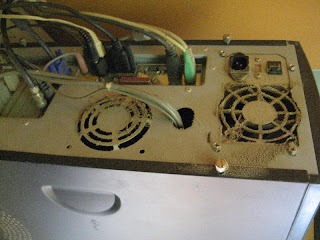


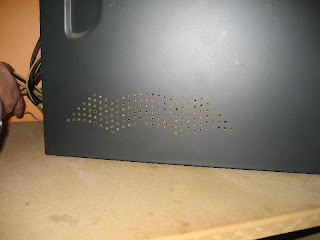
When you see your "vents" all clogged up, like mine (see pic below), then chances are, the back of the computer is also clogged up (pic above). Time to PHYSICALLY clean up your computer.


Here's Gilbert, cleaning it up with his air compressor.


Another picture, of Gilbert, cleaning every nook and cranny.


See the dirt on the bottom? That too, needs to be picked up! *grin*


There!!!! You can now wipe off your hands and congratulate yourselves for having done a preventative and well-done job! Wasn't that difficult, was it? PLUS, I've just saved you tons of money, on cleaning up your computer AND possible future repairs. *VBG*

Once again, I'm not an expert at these things... just passing along some (helpful) information. Please feel free to leave comments.... *s*

Rosa

Saturday, February 2, 2008

Computer Maintenance - #3 (External Hard Drives - Suggestions)

Here's how to go about it. Mind you, these are just suggestions. *s*

Buying an External Hard Drive

It all depends on how much space you have on your Hard Drive.
For example, if you have 80 gigs on your computer, my DH (Dear Husband) recommends that you pick up an external HD with AT LEAST 80 gigs... These days, most external HD's are at least 100 gigs or more... Plus, if you want to back up someone else's computer in your home, you might want to go with a 250 gig.... just to be on the safe side.

Software
Then, DH recommends that you buy the program "Acronis True Image". He says it's approx. 50 bucks Canadian. Install the program, plug in your external hard drive and the wizzard will guide you through the steps. YOU decide what you want to back up, or not.... and it compresses everything on your External HD. DH said, for example, if you were to backup your WHOLE computer and let's say it was 80 gig, right? He said it would probably take up 20 gig of space, with the "Acronis" program.
But, another thing that he THOROUGHLY liked with Acronis, was that if your machine crashes... you can re-install the "mirror image"... EXACTLY like it was, since your last backup. Icons from your desktop are saved, your "favorites" are brought back to life and you didn't lose a single email. No programs have to be re-installed. Now, mind you, that would be like ... since your last back up. *s*
Next month, when you do your back up, you can over write last month's data... OR, you can do a 2nd (separate) back up. Or you can select to backup ONLY the "new" stuff, since your last backup. That's what I do with my computer. First time, since it was a COMPLETE backup of what I wanted to "save", it took like 6 hours... now, it only takes like a couple hours(?).
DH says you can buy these External HDs pretty much anywhere. Our Walmart carries them, too! Or you can go to a computer store and have the nice, and hopefully knowledgeable, young geek explain it to you, in detail. *grin*
All in all, I'm guessing with the external HD and the program, would probably cost you about $250.00.... and that's just a "guesstimate"...
Rosa
Will be doing my monthly back up, this morning... *s*

Thursday, January 10, 2008

Computer Maintenance - #2 (Cleaning up your Computer)

Cleaning up your computer is also important.

Here are some simple steps that you can take to help your 'puter run smoother and faster.

Prefetch files were created, supposedly, to help your programs open up faster. How it works, you ask? Everytime you click on a program, on your computer, it creates a "prefetch" file. The second time that you open up the same program, it's supposed to open up faster. Sounds like a great idea, eh? Not really. There are SOOO many programs on your computer, that this file gets clogged up quickly and slows down your computer. Here's what you do:

Prefetch files:
Click on:
My Computer
Select:
"C" Drive
Click on:
Windows
Click on:
Prefetch
(see all those prefetch files) - DELETE THEM ALL!

************************************

Temp files are files are created when you browse on the internet. And they, too, can slow down and clog up your computer. *s*

Temp files:
Click on:
Start
Click on:
Run
Then, type in %temp%
Click on "enter"
See all that crap? Delete it all!!!!

************************************
Cookies are little tell trail crumbs, that can tell a puter geek, where you've been, on the net. It can also clog up and slow down your computer.

Cookies:
Open:
Internet Explorer
Click on:
Tools
Click on:
Options
Under the "General" tab, you'll see the option:
Clean Cookies

************************************

Disk cleanup, once again, helps you keep your computer clean. *s*

Disk cleanup:
Click on:
My Computer
Select:
"C" Drive and RIGHT CLICK on it.
Select:
Properties
Click on:
Disk Cleanup
I suggest you click ALL the boxes.
Select:
Okay

************************************

To Defrag or not to Defrag... that is the question. *grin* Defragging your computer is like putting all the little itsy bitsy pieces on your "hard drive", all in it's proper space and re-compresses them. This might take a couple hours. Go grab yourself a coffee, go watch a good movie... or better yet, go work on that UFO!!! *grin*

NOTE: Do NOT leave your screensaver on! Disk Defragger will NOT work and you'll just have to restart the whole darn thing, again. *groan*

Disk Defragmenter:
Click on:
Start
Click on:
All Programs
Click on:
Accessories
Click on:
System Tools
Click on:
Disk Defragmenter
Select:
Disk C
Select:
Analyze
This might take a while. At this point, your computer might tell you that it's not necessary to defrag. If not, then close your defragger window. *s*
If you need to defrag, then, select:
Defragment
NOTE: Do NOT leave a screen saver on. Disk Defrag will stop and once you realize what happened, you'll have to re-start the defrag again. Ask me how I know about this. LOL

************************************

Now, last thing to do - CLEAN UP your garbage can!
Empty that garbage can, on your desktop!

Now, feel better? Job well done! *grin*

************************************

One good web site that I came across, a while back, explains why to clean up your computer and how to do it. Unfortunately, it was written for Windows 98, but it might explain things a bit better than I. *s*

Cleaning House:
http://www.geocities.com/pfboulden/cleaninghouse/cleaninghouse.html?200810

************************************

Have a great day! If you see that I made a mistake, please forgive me - I'm not an expert at this computer stuff... but PLEASE send me an email and I'll try and correct the mistake. *s*

Rosa

Monday, December 31, 2007

Computer Maintenance - #1 (Backups are IMPORTANT!!!)

I thought I'd start a series and hopefully post a new "maintenance" trick or suggestion or hint or whatever you want to call it, at the beginning of every month, for computers.

FIRST of all - DO A BACKUP!!! It's not once you've lost your important pictures, data, favorite recipes and special links, etc, that you kick yourself in the butt, with regrets... it's too late, by then. :-(

Second, get yourself an external HD (Hard Drive). These babies are relatively cheap and easy to use... and there's TONS of space on them, too!

And third of all, Gilbert, my DH (dear husband) does a lot of research, on the net. During this past year, we have been using "Cloneur Expert" for our backups. This does an EXACT copy of your computer - your operating system, etc. It's like a "mirror image" of your computer. When you do get a computer crash, no need to re-install your Windows system, your anti-virus system, work on all your personal settings, etc, etc. This can be time consuming... trust me, Gilbert and I both know!

The English version to this program is called "Acronis True Image". Do a google search for it, read up what others have to say about it... trust me, it's well worth all your pennies! *s*

All this being said, even if you DO have an external HD and even IF you get a program to help with backups.... you still need to FAITHFULLY do your backups!

Rosa